
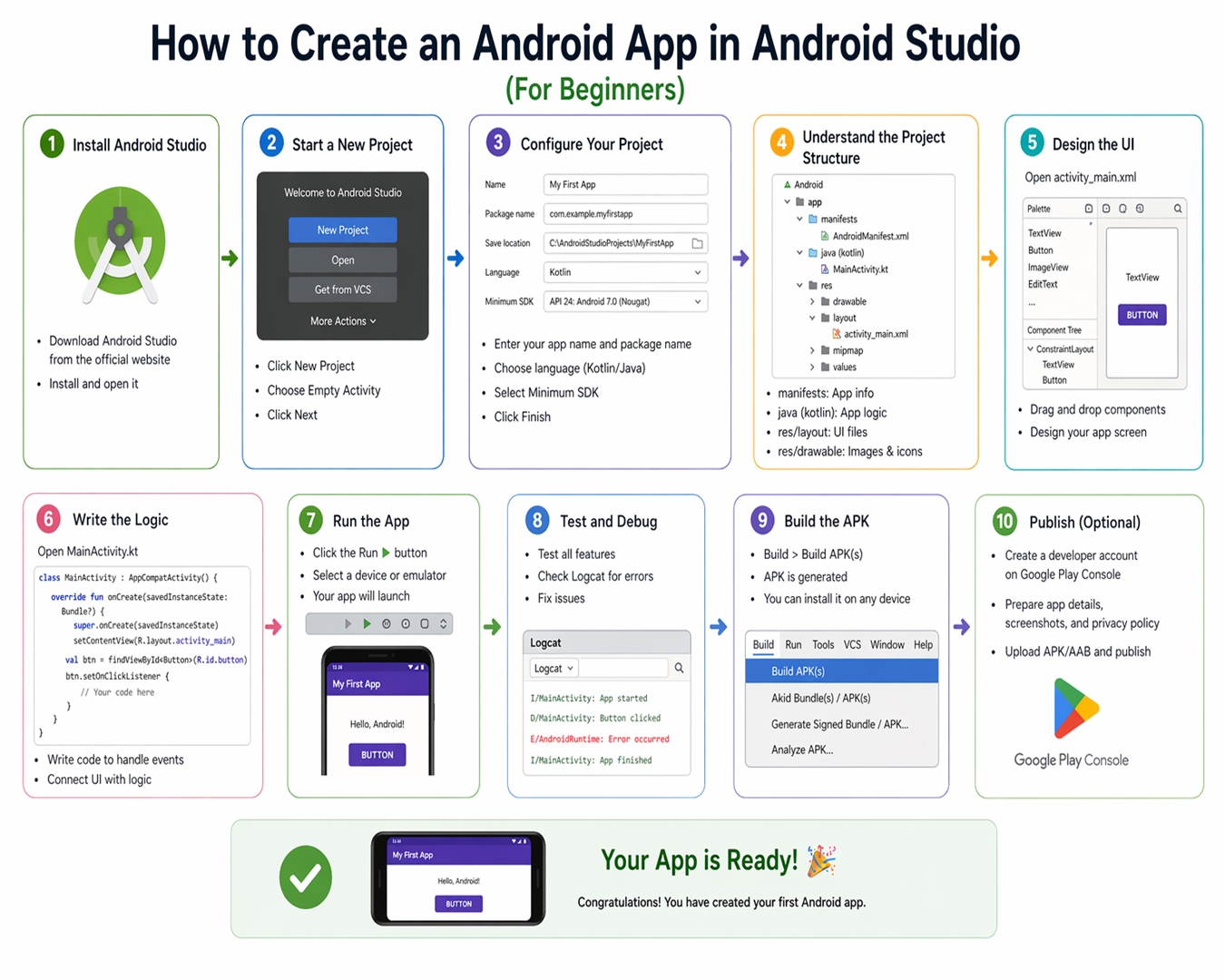
The Ultimate Guide to Creating Your First Android App with Android Studio: From Zero to Play Store (2026 Edition)
In the digital landscape of 2026, mobile applications have moved beyond mere tools—they are the primary way the world interacts with technology. With over 3 billion active Android devices globally, learning Android app development is no longer just a career choice; it is a gateway to participating in the global digital economy.
If you have ever had an idea for an app but felt intimidated by the technical jargon, this guide is for you. We will break down the process using Android Studio, the official and most powerful IDE (Integrated Development Environment) provided by Google.
Part 1: Preparing Your Development Environment
Before you write a single line of code, you must ensure your “workbench” is ready. Android Studio is a resource-intensive software, and proper configuration is the difference between a smooth creative process and a frustrating, laggy experience.
1.1 Hardware Specifications: The “Pro” Setup
Many beginners fail because they try to run modern development tools on outdated hardware. To ensure a professional workflow, aim for these specifications:
The Processor (CPU): Android Studio relies heavily on compilation speeds. An Intel Core i5 or i7 (12th Gen or newer) or an AMD Ryzen 5/7 is ideal. High clock speeds help in reducing “Gradle Build” times.
RAM (The Critical Component): While 8GB is the official minimum, it is practically insufficient in 2026. 16GB of DDR4/DDR5 RAM is the “sweet spot” for running the IDE, a web browser with 20 tabs (for documentation), and the emulator simultaneously.
Storage (SSD vs. HDD): Never install Android Studio on a traditional Hard Disk Drive (HDD). Use an NVMe SSD. The difference in project loading times is nearly 10x faster.
Operating System: Windows 11 (64-bit), macOS (M1/M2/M3 chips are exceptionally fast for Android development), or a modern Linux distribution (Ubuntu/Fedora).
1.2 Installing Android Studio: Step-by-Step
Download: Navigate to the Official Android Studio page.
The Installation Wizard: Run the installer and ensure the Android Virtual Device (AVD) component is checked.
The “Standard” Setup: Upon first launch, choose the “Standard” setup. This allows Google to automatically select the best SDK (Software Development Kit) versions for your system.
SDK Manager: Once open, go to Tools > SDK Manager. Ensure you have the latest API levels (e.g., Android 14/15/16) downloaded. This ensures your app can access the latest hardware features like foldable screen support or enhanced AI processing.
Part 2: Understanding the Architecture
To build a house, you need a blueprint. To build an app, you need to understand Project Structure. When you create a new project in Android Studio, it generates dozens of folders. Don’t panic; here are the only ones you need to care about initially:
2.1 The Manifests Folder
Inside is the AndroidManifest.xml. Think of this as the “ID Card” of your app. It tells the Android system:
- What the app’s name is.
- Which screen opens first.
- What permissions it needs (Camera, Internet, GPS).
2.2 The Java/Kotlin Folder
This is where the “brain” of your app lives. Whether you choose Kotlin (highly recommended) or Java, your logic—what happens when a user clicks a button—is written here.
2.3 The Res (Resources) Folder
This is the “skin” of your app.
- Layout: Contains XML files that define how your app looks.
- Drawable: Contains images and icons.
- Values: Contains colors, strings (text), and styles.
This diagram illustrates the core components of an Android project structure, helping you visualize how the app is organized.
Part 3: Building Your First App – The “Hello World” Project
Let’s get hands-on. We aren’t just going to make a static screen; we are going to build an interactive “Greeting App.”
Step 1: Start the Project
Open Android Studio > New Project > Empty Views Activity.
- Name: SmartGreeting
- Language: Kotlin (Modern, concise, and safer).
- Minimum SDK: API 26 (Android 8.0). This covers roughly 92% of the global market while supporting modern features.
Step 2: Designing the UI (XML)
Navigate to res/layout/activity_main.xml. Use the Design Tab to drag and drop:
- A TextView (Change the text to “What is your name?”).
- An EditText (This is where the user types).
- A Button (Set the text to “Greet Me”).
Your XML code will look something like this:
<Button
    android:id="@+id/btnGreet"
    android:layout_width="wrap_content"
    android:layout_height="wrap_content"
    android:text="Greet Me" />
Step 3: Writing the Logic (Kotlin)
Open MainActivity.kt. We need to tell the app: “When the button is clicked, take the name from the text box and show a message.”
val myButton = findViewById<Button>(R.id.btnGreet)
val myInput = findViewById<EditText>(R.id.nameInput)
val myDisplay = findViewById<TextView>(R.id.resultText)

myButton.setOnClickListener {
    val name = myInput.text.toString()
    myDisplay.text = "Hello, $name! Welcome to your first app."
}
Part 4: Testing and Debugging
A developer spends 30% of their time writing code and 70% testing it.
4.1 The Virtual Emulator
If your PC is powerful, use the Device Manager to create a virtual Pixel 8. It allows you to simulate different battery levels, network speeds, and even GPS locations.
4.2 Physical Device Testing (The Pro Choice)
Nothing beats testing on a real phone.
- Enable USB Debugging in your phone’s Developer Options.
- Connect via USB or Wi-Fi Debugging (available in modern Android Studio).
The performance will be 1:1, giving you a true feel of the user experience.
Part 5: AdSense and Monetization Strategy
Building an app is fun, but earning from it is better. If you want your app-related content to be AdSense approved, you must provide “High Commercial Intent” content.
5.1 How to Monetize Your App
Google AdMob: The most common way. You show banner or interstitial ads.
- Freemium Model: Give the basic app for free and charge for “Pro” features.
- In-App Purchases: Perfect for games or productivity tools.
- Affiliate Marketing: If your app recommends products, you can earn commissions.
5.2 SEO for App Developers
To rank your app in the Google Play Store (ASO – App Store Optimization):
- Keyword Rich Titles: Use words people actually search for.
- High-Quality Screenshots: Users “eat with their eyes” first.
- Frequent Updates: Google favors apps that are actively maintained.
Part 6: Best Practices for Clean Coding
To move from a beginner to a professional, you must write “clean” code.
- Don’t Hardcode Strings: Instead of writing “Submit” directly in the XML, put it in strings.xml. This makes it easy to translate your app into other languages (Bengali, Spanish, etc.) later.
- Use ConstraintLayout: It is the most flexible way to ensure your app looks good on both a small 5-inch phone and a 12-inch tablet.
- Version Control (Git): Always use GitHub. It’s a “Save Game” for your code. If you break something, you can go back to the version that worked.
Part 7: Frequently Asked Questions (FAQ)
Q1: Can I build an Android app without coding?
A: There are “No-Code” builders, but they are limited. If you want a professional career or a high-performance app, learning Android Studio is essential.
Q2: How long does it take to learn?
A: You can build your first app in 2 hours. To become job-ready, expect 3 to 6 months of consistent practice.
Q3: Is Java dead?
A: No, but Kotlin is the future. Google’s documentation is now “Kotlin-first.”
Conclusion: Your Journey Starts Now
Creating your first Android app is more than just a technical exercise; it is an act of creation. You started this guide with an idea, and now you have the roadmap to turn that idea into a tangible file on a smartphone.
The world of Android Studio is vast. Today you built a greeting app; tomorrow you could build the next big social media platform or a tool that helps thousands of people. The key is consistency. Don’t let “Gradle Errors” discourage you—every professional developer was once a beginner staring at the same error codes.
Final Checklist for Success:
- Check your PC RAM (16GB is best).
- Install the latest Android Studio.
- Build the “Empty Views Activity.”
- Test on a physical device.
- Keep learning through official Google documentation.